There is no native TrendsConnector app on Zapier. A search of the Zapier app directory returns Trendswell, a different product, and no TrendsConnector listing. The working route is Zapier's built-in Webhooks by Zapier action, which sends a POST request to the documented REST endpoint with an API key. Setup runs in five moves: get a free key with an email address and an 8-digit code, add a Schedule trigger for each day at 09:00, add a webhook POST step with the exact URL, header, and body in this guide, test the step, then send the result to Google Sheets or Slack. Each call costs one request, so a daily Zap uses about 30 of the 100 free monthly requests. The first answer is the Google Trends board, which opened on 2026-11-04 with "2026 US election results" at rank 1.
The Zapier app directory has no TrendsConnector listing
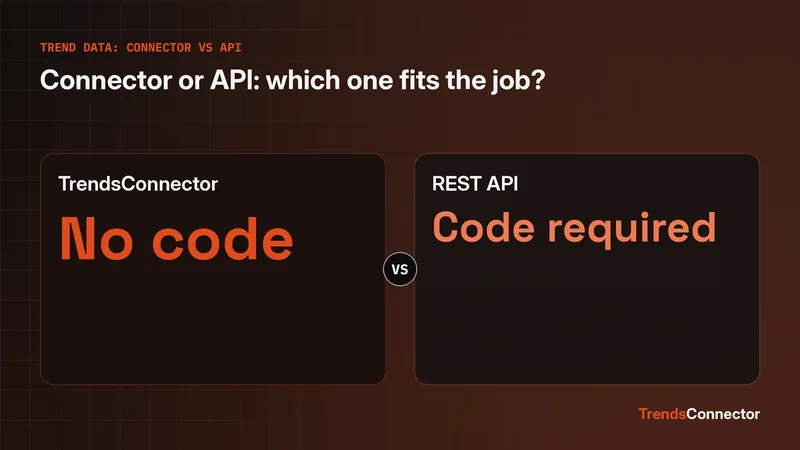
Search Zapier's app directory for TrendsConnector and the closest match is Trendswell, a different product. Installing Trendswell does not connect TrendsConnector data, and no one-click install exists for TrendsConnector on Zapier. The route that works is the generic webhook action Zapier includes: Webhooks by Zapier sends a POST request to any URL, and the TrendsConnector docs publish the URL, header, and body that request needs. That is the whole integration: one scheduled trigger, one webhook step, one destination step.
The free key arrives as an 8-digit code
Signup asks for an email address and nothing else: no password, no credit card. TrendsConnector replies with an 8-digit code to confirm the address, and the account page then shows the API key. One free key covers 100 requests a month and works for both MCP and REST, so the same key that connects a chat client also authorizes the Zapier webhook. Store it where the Zap can read it and a second client can reach it later. If it ever leaks, the account page issues a new one.
A Schedule trigger fires the Zap each day at 09:00
Create a Zap and pick Schedule by Zapier as the trigger. Set the frequency to Every Day and the time to 09:00, then pick the timezone the board gets read in. The trigger carries no trend data itself; its job is to start the Zap on time so the webhook step can ask for the board. A weekday-only schedule works the same way and drops the monthly use to about 22 requests.
The webhook step takes six exact values
Add a Webhooks by Zapier step with the action event POST. Six values matter, and the rest can stay at their defaults.
| Field | Value |
|---|---|
| App | Webhooks by Zapier |
| Action event | POST |
| URL | https://api.trendsconnector.com/api |
| Headers | Authorization: Bearer |
| Payload type | JSON |
| Data | {"mode": "get_top_trends", "type": "Google Trends", "limit": 10} |
Paste the real key where the placeholder sits, with the word Bearer and one space before it. Set the body to the JSON above, with the mode naming the call, the type naming the Google Trends board, and the limit set to 10 rows. The endpoint answers with its payload as a JSON string, so a later step that reads a field from the answer parses that string again first.
Test the step and read the board it returns
Run Test step in Zapier before adding a destination. A working step returns the Google Trends board as a ranked list, and the test output shows the same shape the live Zap will send on. The board the endpoint returned on 2026-11-04 at 07:01 UTC opened with 2026 US election results at rank 1, and the next rows on that pull were election names, with a heritage-month observance closing the top five. The limit of 10 asks for ten rows; only the top five are described here. Board data lags a few days behind the live search page, so the rows a test returns will differ from the rows a Zap fetches next week. The Google Trends connector page lists the other boards the same key can ask for, and the connector index maps every source the key covers.
A second step puts the result in Sheets or Slack
One more step turns the board into something readable without opening Zapier. For Google Sheets, add a Create Spreadsheet Row step with columns for the date and the top three ranks, then map the parsed answer into those columns. For Slack, add a Send Channel Message step with the board date and the top three items in the message text. Either destination works from the same webhook output; pick the one that already gets read each morning.
One request per call keeps the free plan in reach
Top trends costs one request per call over REST, so a Zap that fires every day uses about 30 requests in a month and leaves about 70 of the free 100 untouched. That leaves room for a second board or a second daily Zap before the pool runs dry. The free tier covers 100 requests a month, so a daily Zap stays inside it with room to spare.
The same key also connects Claude, ChatGPT, and Cursor
The key in the webhook header is the same key that connects AI clients over MCP, so a workflow that starts as a scheduled Zap can move to chat without new credentials. The Claude setup page and the ChatGPT setup page carry the exact connection steps for each client. Keep the key server side, never in browser code or a public repo.
When the test step fails, check three things
First, confirm the key was pasted in full, with no placeholder text left and no extra space at either end. Second, confirm the URL matches the docs exactly, including the https and the /api path. Third, confirm the body is valid JSON with all three fields: mode, type, and limit. Work through the three checks in order before changing anything else.